
Make the music faster or slower
Adjust the BPM with a single tap, without changing the pitch of the vocals.
The app interface is in Portuguese for now. In these tutorials, button names appear in Portuguese, followed by the translation in parentheses.
Is the pace too tough, or too easy? You can adjust it on the spot.
During a workout
Tap the screen to show the controls. On the right side there are two stacked buttons: + on top and − below.
- One tap changes the tempo by 1 BPM.
- Press and hold either one to go back to the original tempo.
In the Opções (Options) panel (swipe up), the tempo is at the top, with −5 and +5 buttons, and it shows how far you can go.
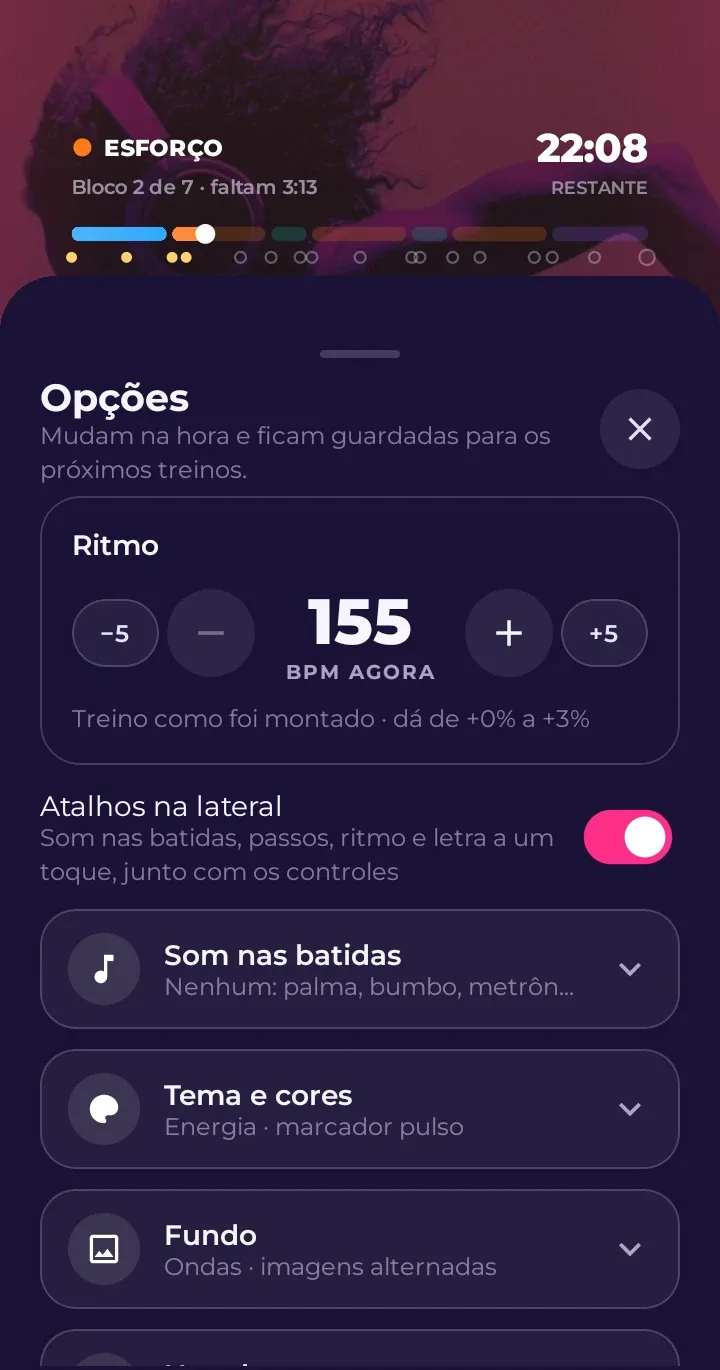
In a workout, the adjustment applies to the whole workout, proportionally: if you slow down by 5%, every block gets 5% slower. The limit is 5% either way, so the workout stays the way it was planned.
On a single song
When you’re listening to a song from the Músicas (Songs) tab, you have more freedom to pick the BPM: from about 15% slower to 16% faster than the original. When you reach the limit, the app lets you know.
The vocals don’t change
OmniBeat stretches the music without changing its pitch. Faster or slower, the vocals sound the same: no squeaky sped-up voices or deep, dragging ones.