
Headphones, Bluetooth and screen sync
Match what you see with what you hear, on each pair of headphones and on the speaker.
The app interface is in Portuguese for now. In these tutorials, button names appear in Portuguese, followed by the translation in parentheses.
Claps, voice cues and vibration play together with the music, always on time, with any headphones. What can drift a little is the screen: some headphones, especially Bluetooth ones, delay the sound relative to the picture.
New headphones
When you connect headphones the app doesn’t know yet, you’ll see the message Fone novo conectado (New headphones connected). Tap Ajustar (Adjust) to run the test with them. If you’d rather not, choose Agora não (Not now), which asks again the next time you connect, or Não lembrar mais (Don’t remind me again).
Calibrating headphones
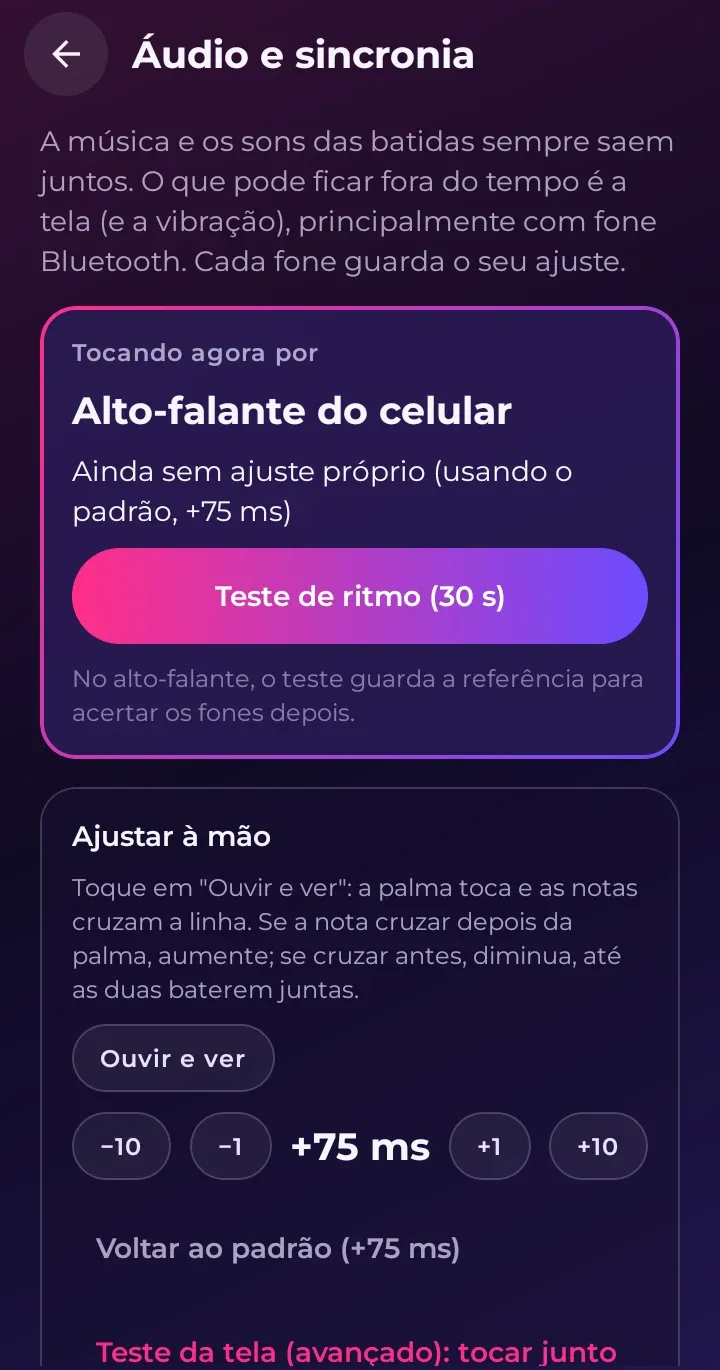
In Configurações › Áudio e sincronia (Settings › Audio and sync):
- Check which output is in use (speaker, wired headphones, Bluetooth or USB).
- On the speaker, take the Teste de ritmo (Rhythm test). On headphones, tap Acertar este fone (Calibrate these headphones): it’s the same test, and the app compares it with the speaker result to find out how much those headphones delay the sound.
- If the difference is small, the headphones keep the same adjustment as the speaker.
Take the test on the speaker first. It’s the reference for all your headphones.
Adjusting by hand
In Ouvir e ver (Listen and see), the app plays claps with notes falling down the screen. Use −10, −1, +1 and +10 until the note reaches the line exactly on the clap. To go back to normal, tap Voltar ao padrão (Reset to default).
The Fones e saídas já ajustados (Calibrated headphones and outputs) list shows each output with its adjustment. Esquecer (Forget) deletes the adjustment for one of them.
During a workout
In Opções (Options), the Sincronia da tela (Screen sync) section shows the name of the output in use and lets you make the same fine adjustment while the music plays.